> ## Documentation Index
> Fetch the complete documentation index at: https://docs.ecomelixir.com/llms.txt
> Use this file to discover all available pages before exploring further.
# Installing Elixir
> This guide will walk you through installing Elixir, activating your license, and connecting your store to receive future theme updates.
## Before you begin
Make sure you have:
* Access to your Shopify admin
* Access to the email used when purchasing Elixir
* Your Elixir license key
* Permission to create a Shopify custom app
***
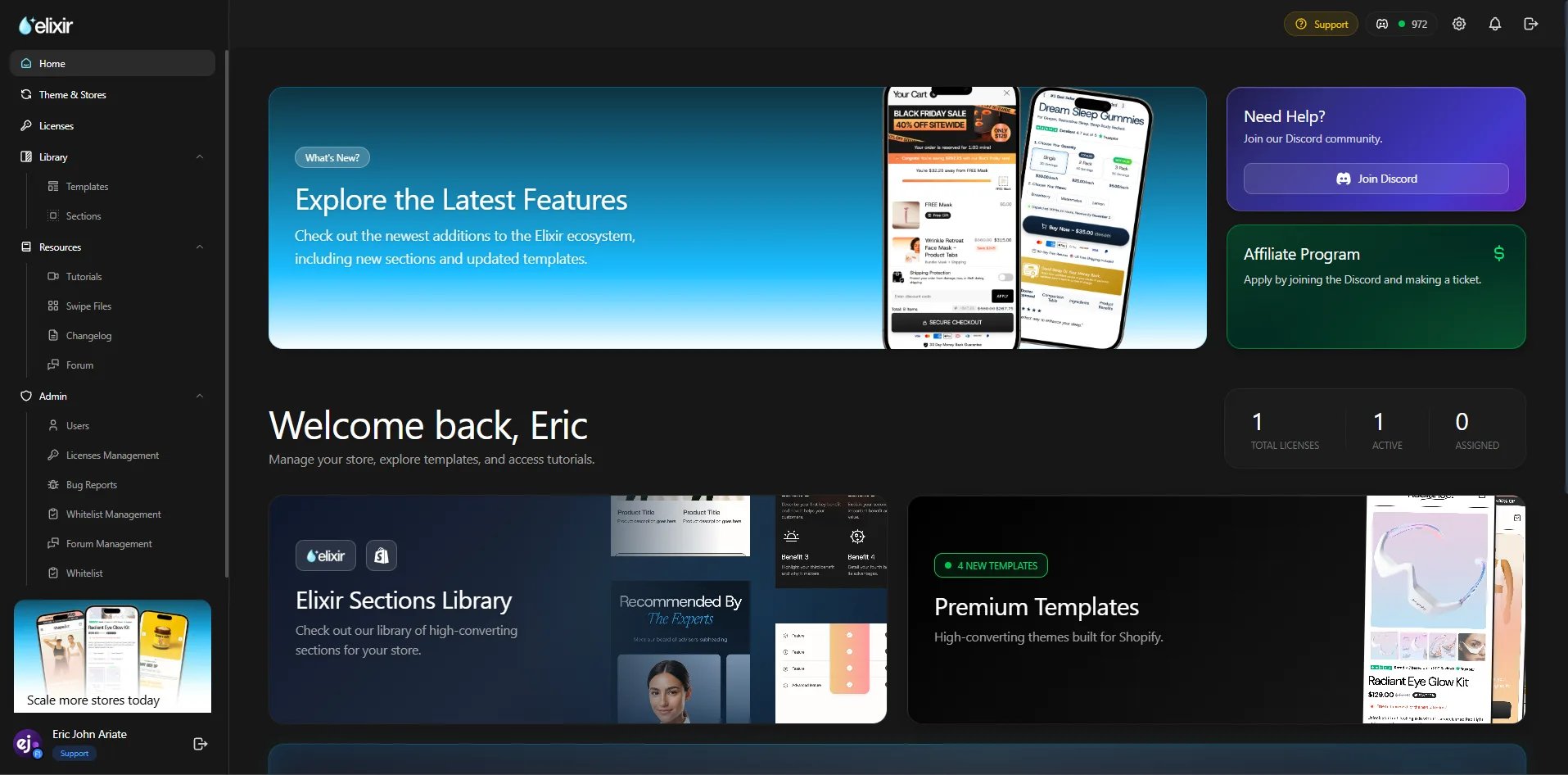
## Step 1: Log in to the Elixir Dashboard
Visit the [Elixir dashboard](https://app.ecomelixir.com) and sign in using the same email address used when purchasing your theme license.
Once logged in, you'll have access to:
* Theme downloads
* License management
* Theme updates
 ***
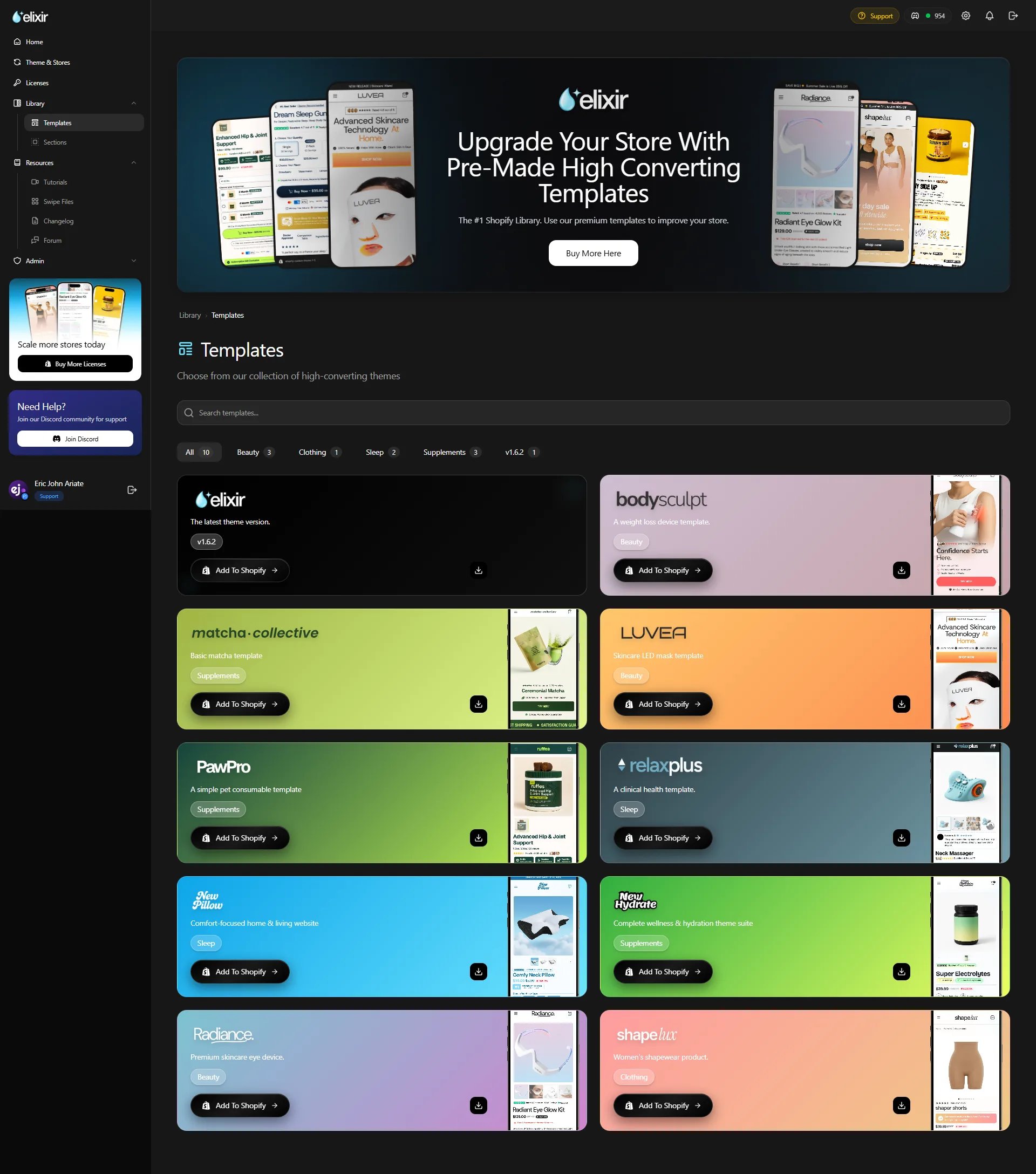
## Step 2: Download the Theme
Navigate to [**Premade Templates**](https://app.ecomelixir.com/templates) within the dashboard.
Download the theme ZIP file you would like to install.
***
## Step 2: Download the Theme
Navigate to [**Premade Templates**](https://app.ecomelixir.com/templates) within the dashboard.
Download the theme ZIP file you would like to install.
 ***
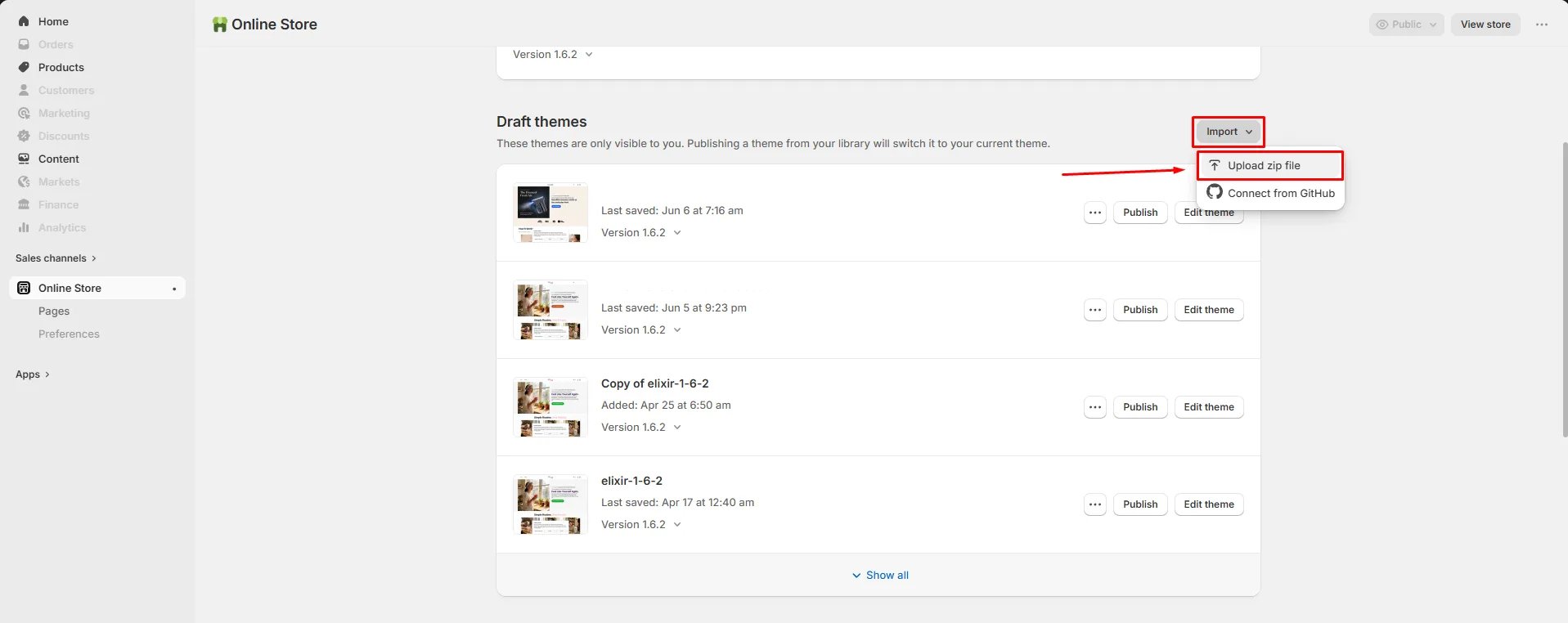
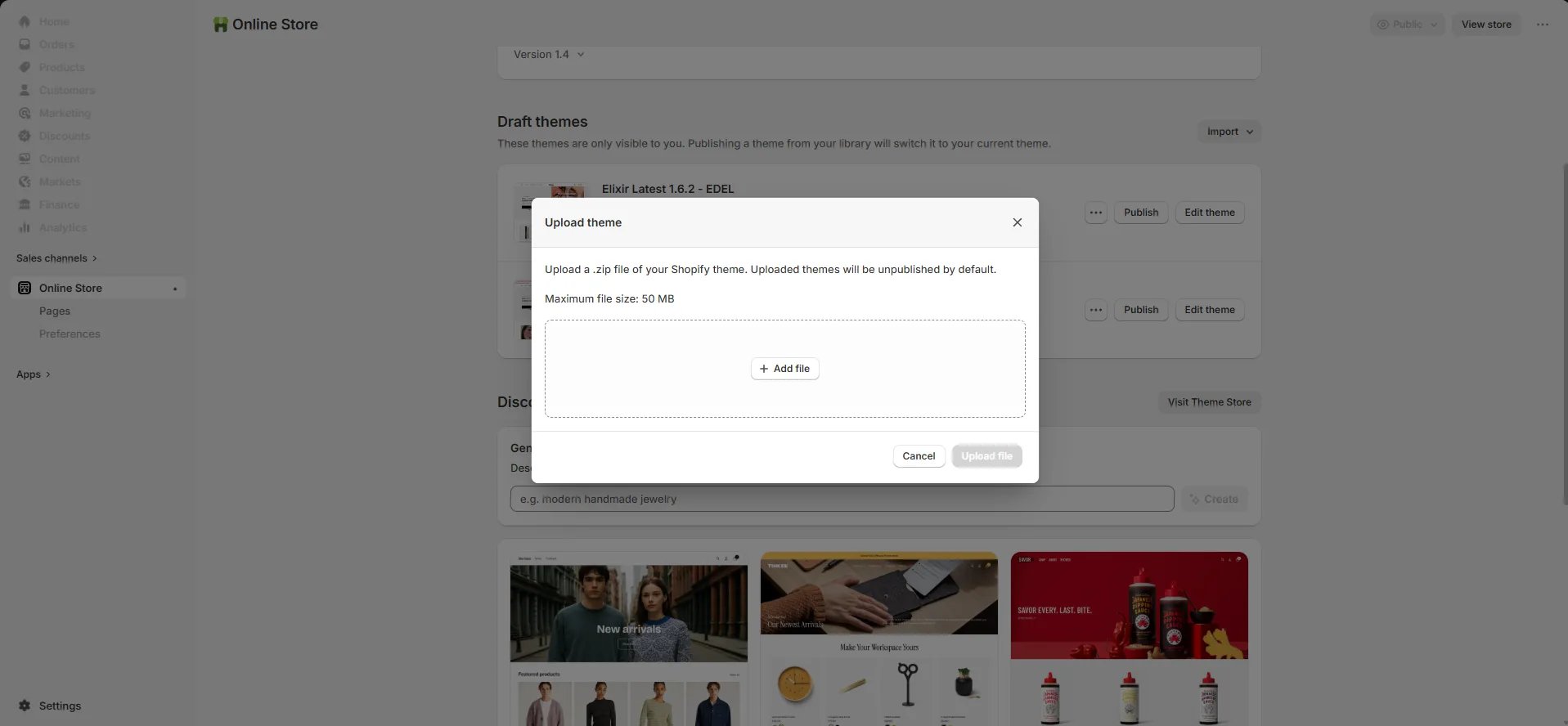
## Step 3: Upload the Theme to Shopify
In your Shopify Admin:
1. Go to **Online Store → Themes**
2. Click **Add Theme**
3. Select **Upload ZIP File**
4. Choose the Elixir theme ZIP file
5. Wait for Shopify to finish uploading
Once uploaded, the theme will appear in your Theme Library.
***
## Step 3: Upload the Theme to Shopify
In your Shopify Admin:
1. Go to **Online Store → Themes**
2. Click **Add Theme**
3. Select **Upload ZIP File**
4. Choose the Elixir theme ZIP file
5. Wait for Shopify to finish uploading
Once uploaded, the theme will appear in your Theme Library.
 ***
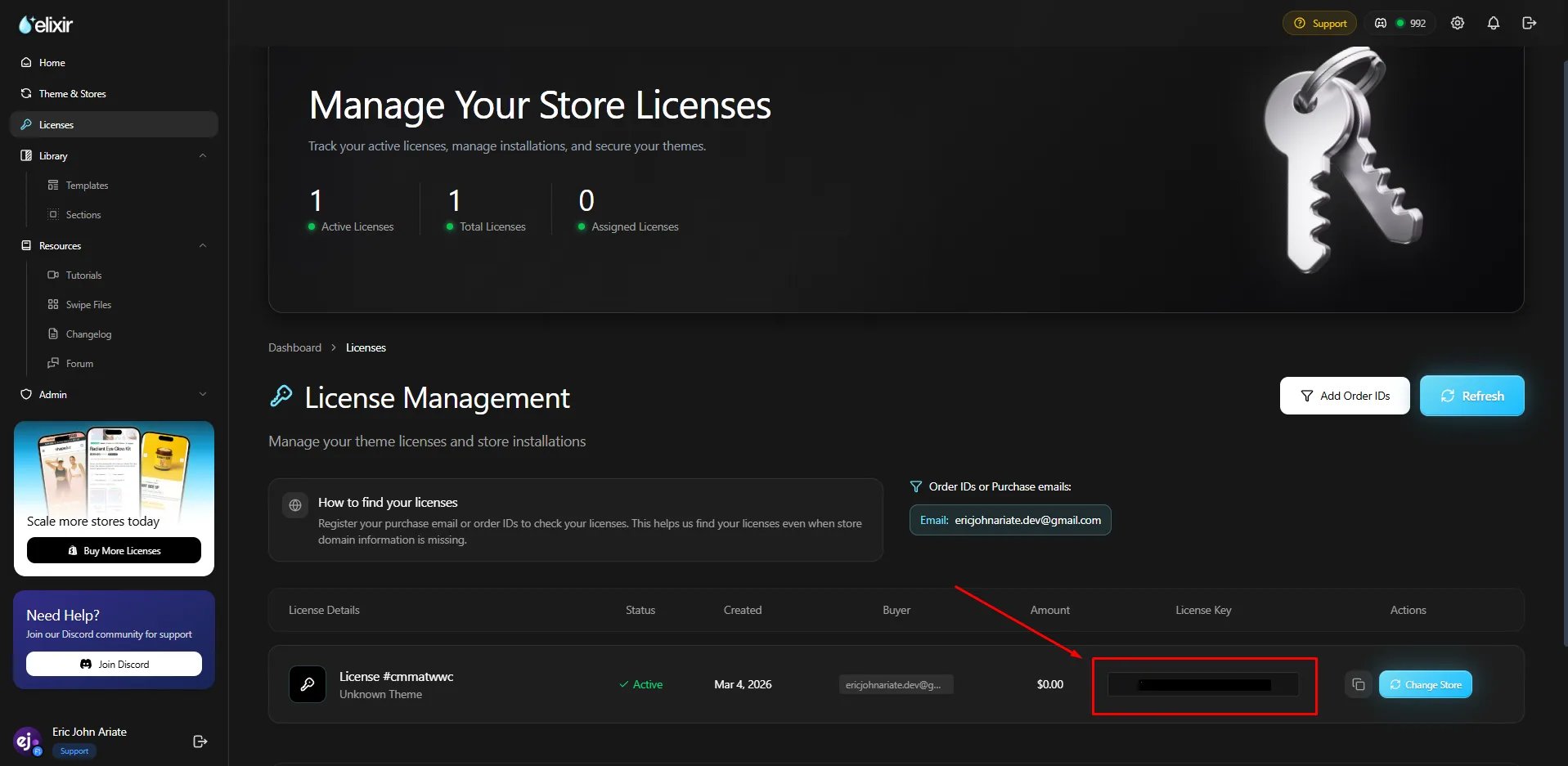
## Step 4: Find Your License Key
Return to the [Elixir dashboard](https://app.ecomelixir.com/dashboard) and open the [**Licenses** page](https://app.ecomelixir.com/licenses).
Locate the license assigned to your store and copy the license key.
***
## Step 4: Find Your License Key
Return to the [Elixir dashboard](https://app.ecomelixir.com/dashboard) and open the [**Licenses** page](https://app.ecomelixir.com/licenses).
Locate the license assigned to your store and copy the license key.
 ***
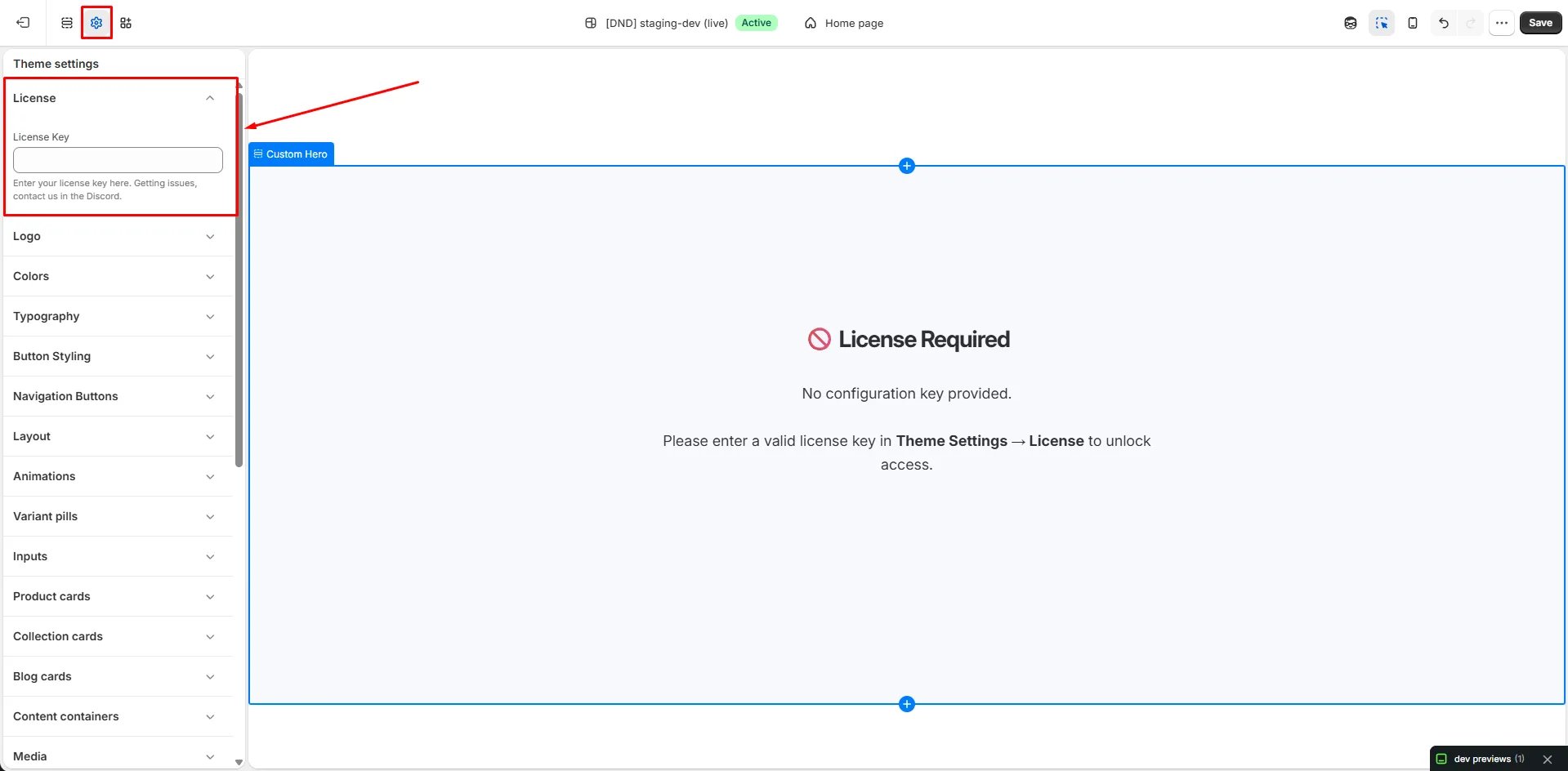
## Step 5: Activate Your License
In Shopify:
1. Open the Theme Editor
2. Navigate to **Theme Settings**
3. Open the **License** section
4. Paste your license key
5. Save your changes
Your theme is now activated.
***
## Step 5: Activate Your License
In Shopify:
1. Open the Theme Editor
2. Navigate to **Theme Settings**
3. Open the **License** section
4. Paste your license key
5. Save your changes
Your theme is now activated.
 ***
## Enable Theme Updates
To receive future Elixir updates, you'll need to connect your Shopify store to the Elixir update system.
## Step 6: Create a Shopify Custom App
[Create a Shopify custom app](https://app.ecomelixir.com/tutorials) following our video tutorial:
***
## Enable Theme Updates
To receive future Elixir updates, you'll need to connect your Shopify store to the Elixir update system.
## Step 6: Create a Shopify Custom App
[Create a Shopify custom app](https://app.ecomelixir.com/tutorials) following our video tutorial:
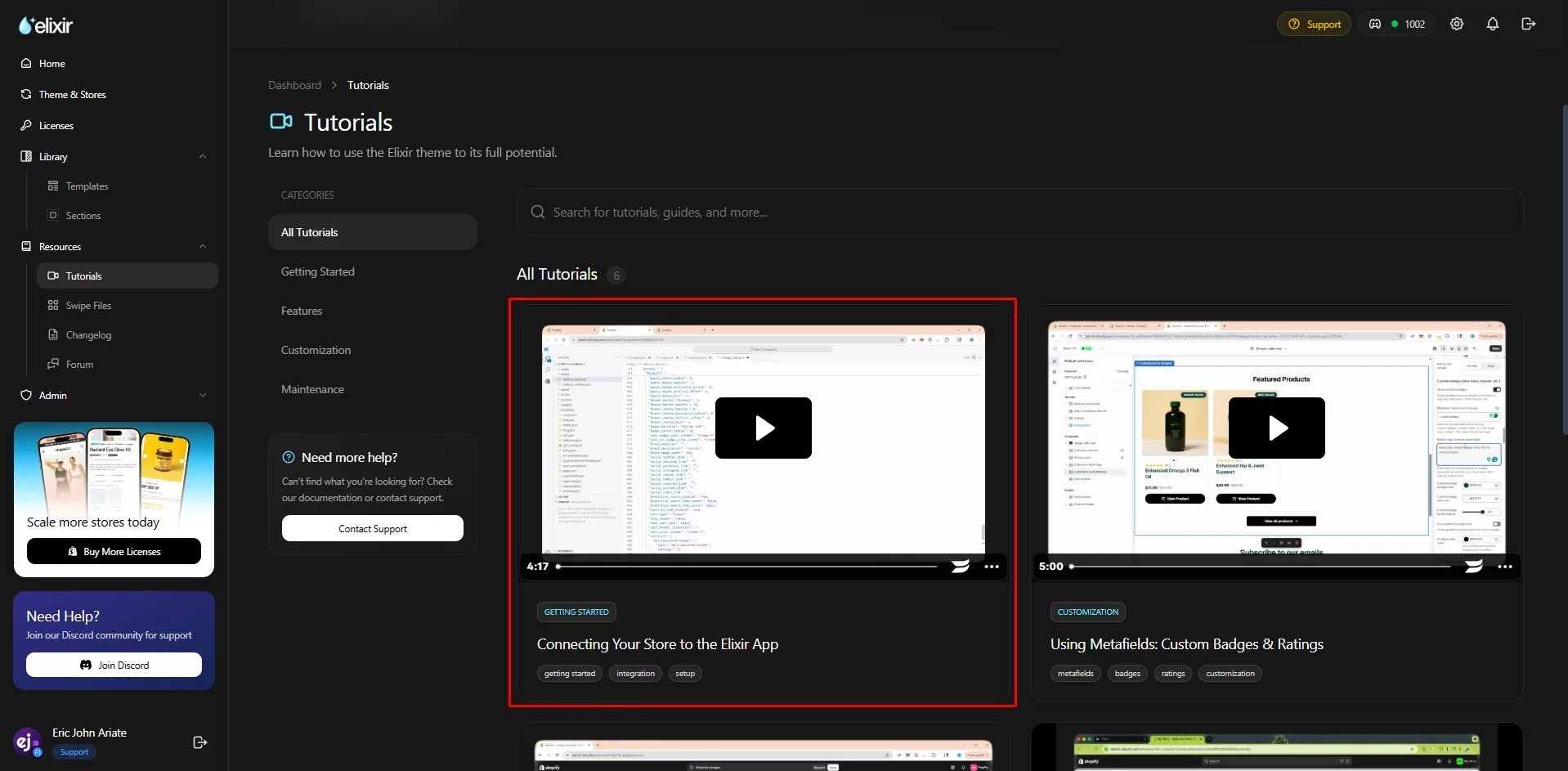 The tutorial will guide you through:
* Creating the custom app
* Generating API credentials
* Installing the app
* Retrieving your credentials
Once complete, you should have:
* Client ID
* Client Secret
* Shopify store domain
***
## Step 7: Connect Your Store
Open the [Theme Updates page](https://app.ecomelixir.com/theme-updates):
The tutorial will guide you through:
* Creating the custom app
* Generating API credentials
* Installing the app
* Retrieving your credentials
Once complete, you should have:
* Client ID
* Client Secret
* Shopify store domain
***
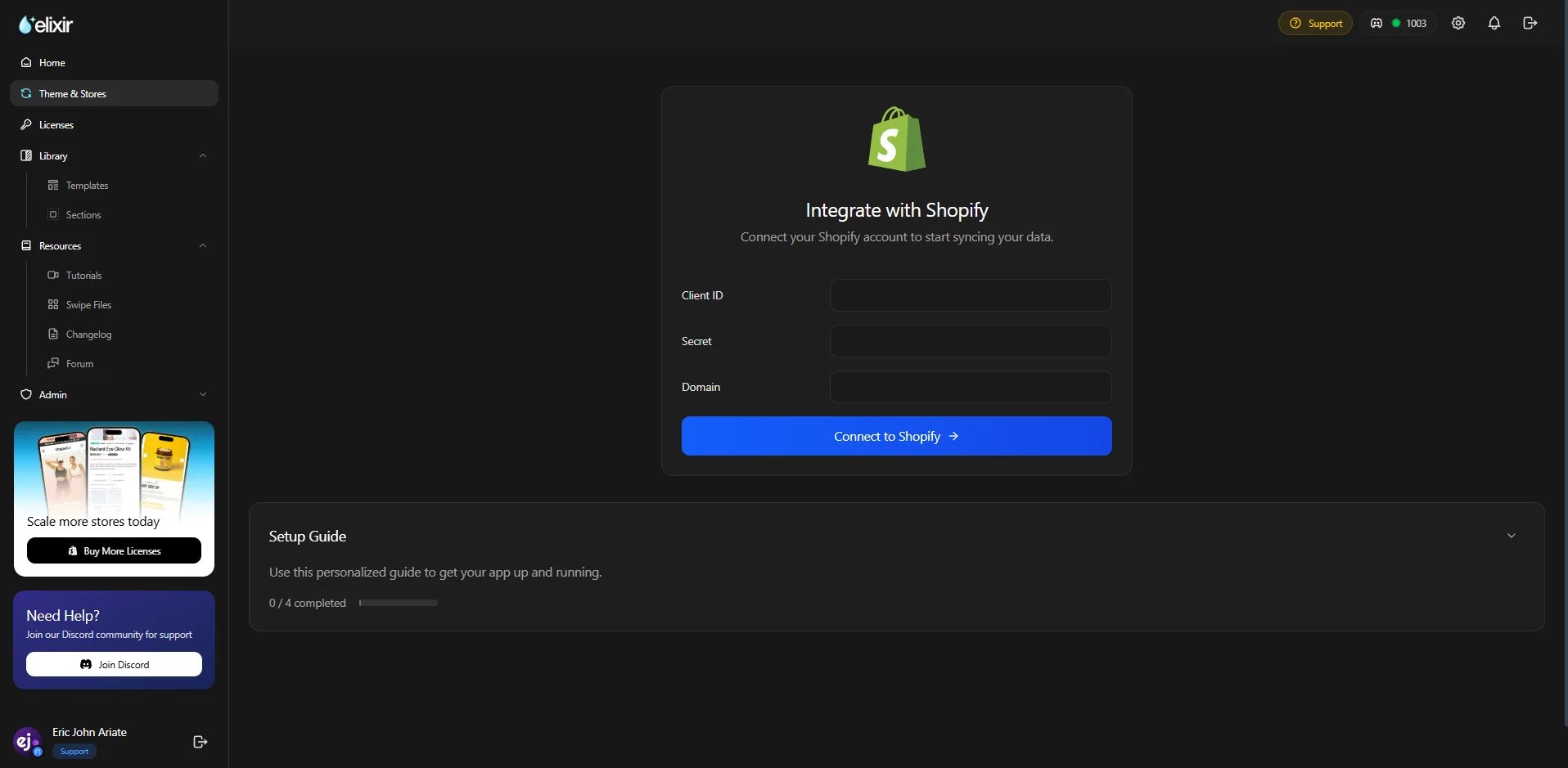
## Step 7: Connect Your Store
Open the [Theme Updates page](https://app.ecomelixir.com/theme-updates):
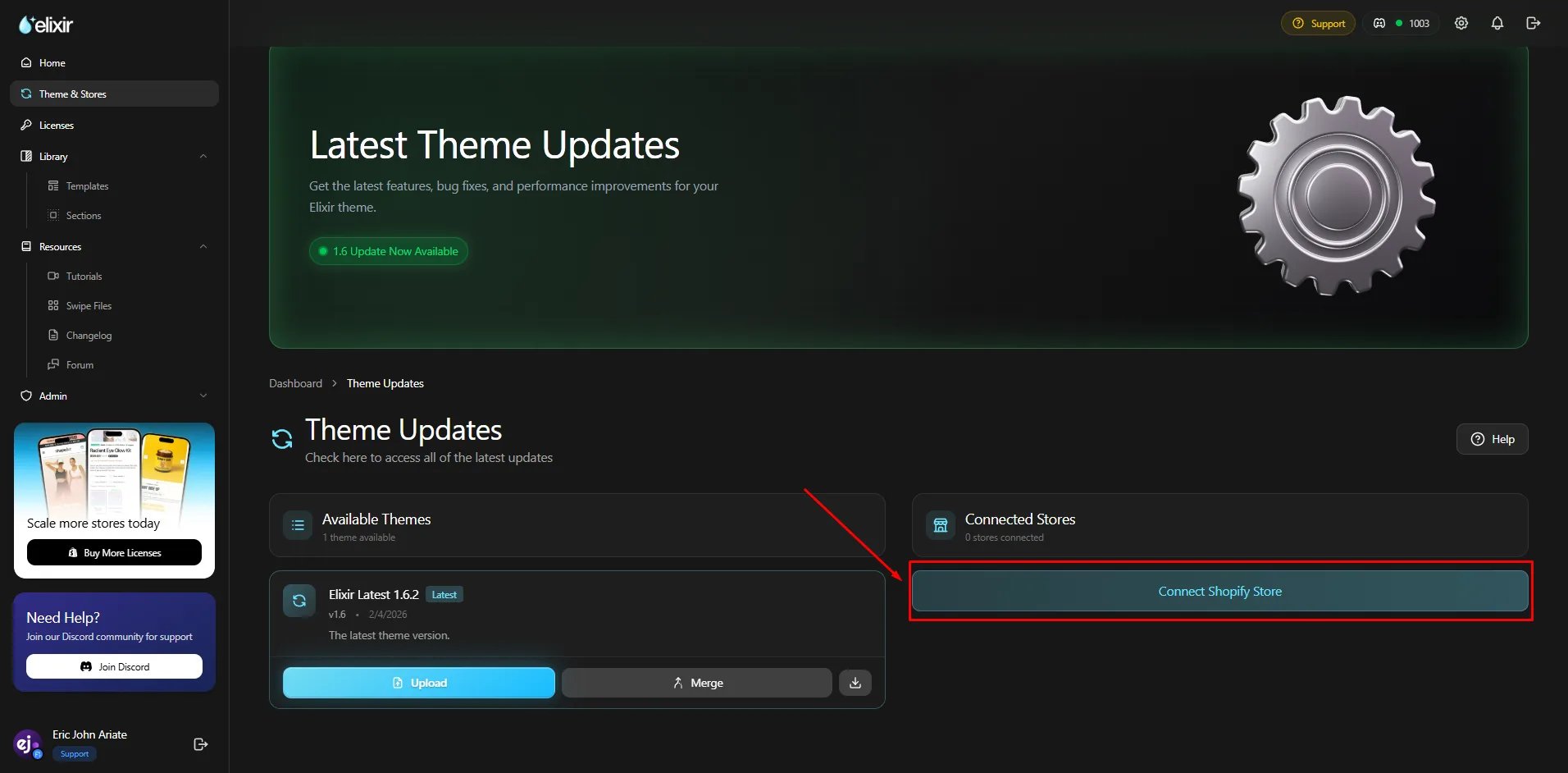 Enter the following information:
* Client ID
* Client Secret
* Shopify Store Domain
Use your default Shopify domain ending in **.myshopify.com**.
Example: your-store.myshopify.com
Enter the following information:
* Client ID
* Client Secret
* Shopify Store Domain
Use your default Shopify domain ending in **.myshopify.com**.
Example: your-store.myshopify.com
 ***
## Step 8: Verify the Connection
After submitting your details, the dashboard should show your store as connected.
Once connected, you'll be able to receive future Elixir theme updates directly through the update system.
***
## Troubleshooting
### I can't find my license key
Make sure you're logged into the dashboard using the same email address used during checkout.
### My license won't activate
* Double-check for extra spaces when copying the key
* Ensure the license belongs to the correct store
* Contact support if the issue persists
### Store connection failed
Verify that:
* Client ID is correct
* Client Secret is correct
* You're using the .myshopify.com domain
* The custom app has been installed successfully
If you're still having trouble, contact support with screenshots of your setup.
***
## Step 8: Verify the Connection
After submitting your details, the dashboard should show your store as connected.
Once connected, you'll be able to receive future Elixir theme updates directly through the update system.
***
## Troubleshooting
### I can't find my license key
Make sure you're logged into the dashboard using the same email address used during checkout.
### My license won't activate
* Double-check for extra spaces when copying the key
* Ensure the license belongs to the correct store
* Contact support if the issue persists
### Store connection failed
Verify that:
* Client ID is correct
* Client Secret is correct
* You're using the .myshopify.com domain
* The custom app has been installed successfully
If you're still having trouble, contact support with screenshots of your setup.